How to Use Cartoon Vectors in Canva: Complete Guide 2026
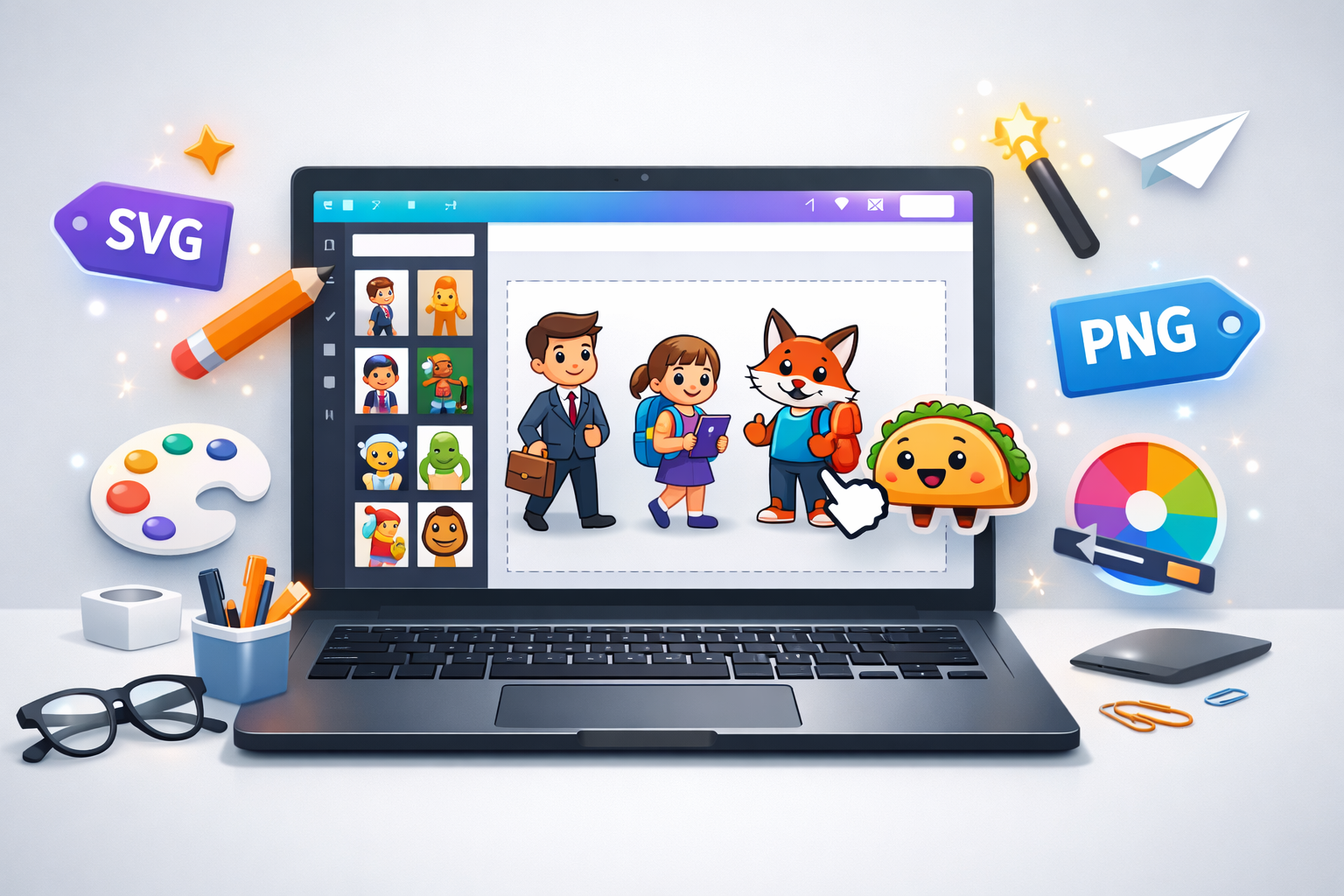
Have you ever seen those amazing social media posts with cute cartoon characters and wondered how they’re made?
Most designers don’t create everything from scratch. They use high quality cartoon vectors and combine them inside Canva.
The issue is simple. Canva’s built-in elements are limited. Millions of users access the same graphics, which makes designs look repetitive.
The smarter approach in 2026 is using external, SEO-optimized cartoon vectors from trusted sources like CartoonVectors.com and importing them into Canva.
In this complete guide, you’ll learn exactly how to use Canva cartoon vector graphics to create scroll-stopping thumbnails, social posts, presentations, ads, and branded content.
What Are Cartoon Vectors?
Vector graphics are created using mathematical paths instead of pixels. That’s why they stay sharp at any size.
- ✅Infinitely scalable with no blur
- ✅Small file size and fast loading
- ✅Editable colors and elements
- ✅Crisp quality on every screen
Common formats used in Canva (2026 optimized workflow):
- PNG – best for quick uploads with transparent background
- SVG – best for Canva Pro users who need full editing
- JPG – best for background scenes
- AI & EPS – for advanced editing in Illustrator before upload
Why Use External Cartoon Vectors in Canva?
1. Stand Out From Competitors
Everyone uses Canva’s default library. External vectors instantly make your brand look different and more premium.
2. Better Variety and Trend Updates
Specialized vector sites update designs based on trends. That matters in 2026 where visual uniqueness drives engagement rates.
3. Commercial Usage Rights
Always check licensing. Premium vectors often include full commercial rights for digital and print.
4. Brand Consistency
Using vector packs from the same collection keeps character style consistent across YouTube thumbnails, landing pages, ads, and packaging.
How to Download Cartoon Vectors for Canva
Step 1: Find the Right Vector
- 🎓 Education illustrations
- 💼 Business characters
- 🍕 Food and restaurant graphics
- 🐾 Animal cartoons
- 🎮 Gaming style assets
Use specific search terms like happy businessman cartoon vector PNG or classroom cartoon SVG.
Step 2: Choose the Right Format
| Format | Canva Compatibility | Best For |
|---|---|---|
| PNG | Excellent | Transparent background uploads |
| SVG | Best (Pro) | Editable colors and parts |
| JPG | Good | Scenes and backgrounds |
Recommendation: Download high resolution PNG with transparent background for maximum flexibility.
How to Upload Cartoon Vectors to Canva
Method 1: PNG / JPG
- Open Canva
- Click Uploads
- Select Upload Files
- Add your downloaded vector
- Drag it into your design
Method 2: SVG (Canva Pro)
- Upload SVG file
- Click element inside design
- Ungroup if needed
- Edit individual colors
Mobile Workflow
- Download vector to phone
- Open Canva app
- Tap Upload Media
- Add to design
Best Practices for Professional Results
- ✔Keep visual hierarchy clear
- ✔Match brand color palette
- ✔Use subtle animation inside Canva for social content
- ✔Limit to one or two main characters per design
Common Mistakes to Avoid
- ✖Using low resolution graphics
- ✖Ignoring licensing terms
- ✖Mixing different illustration styles
- ✖Choosing wrong file format
Quick Comparison
| Feature | Canva Built-in | External Vectors |
|---|---|---|
| Uniqueness | Low | High |
| Variety | Limited | Extensive |
| Customization | Basic | Advanced with SVG |
| Commercial Rights | Limited | Clear licensing options |
Your 2026 Action Plan:
Browse unique cartoon vectors → Download high resolution PNG or SVG → Upload to Canva → Create scroll stopping designs → Build a recognizable brand identity.